
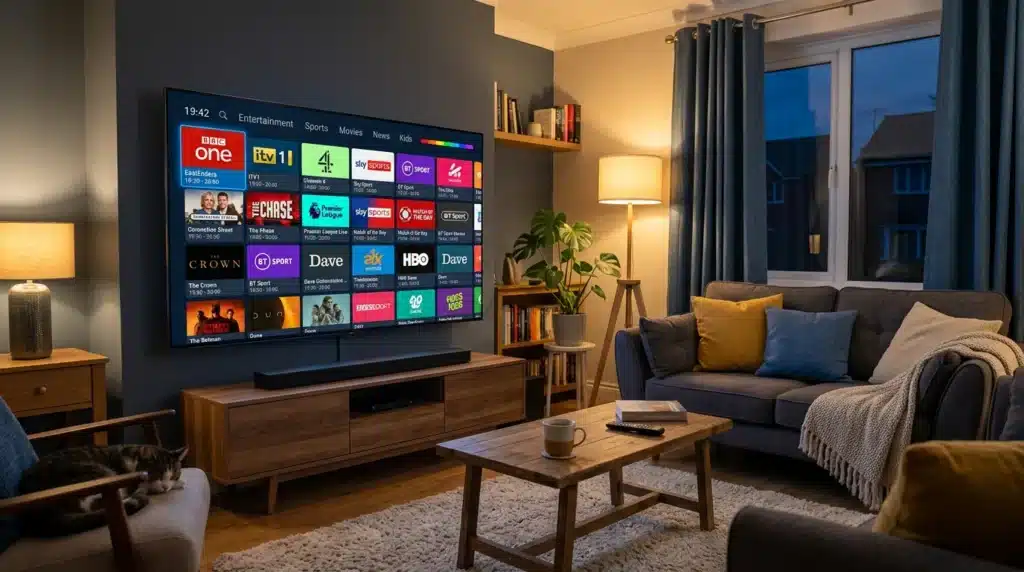
How to set up IPTV on a smart TV in the UK? If you have a Smart TV sitting in your living room and a ZumTV subscription ready to go, you are about 10 minutes away from streaming over 20,000 channels. No satellite dish. No set-top box. No engineer visits.
This guide covers exactly how to set up IPTV on a Smart TV in the UK across the three most popular brands, Samsung, LG and Sony. Each brand runs a different operating system, so the steps vary slightly. Follow the section that matches your TV, and you will be watching in no time.
Before you start, there are two things you need in place. A stable broadband connection of at least 15 Mbps and your ZumTV login details. Your details include a server URL, a username and a password. ZumTV sends these to your email address within minutes of subscribing.
Got both of those? Good. Let us get into it.
How to Set Up IPTV on a Smart TV in the UK
Setting up IPTV on a Smart TV in the UK is straightforward when you have the right things ready. Here is a quick checklist.
Your ZumTV subscription details. These come in one of two formats. Either an M3U playlist URL, or Xtream Codes credentials which include a server address, a username and a password. ZumTV uses Xtream Codes by default.
A broadband connection of at least 15 Mbps for HD streaming. If you plan to watch in 4K, you want 25 Mbps or higher. If you are not sure of your speed, search “speed test” in Google and run a quick check.
A compatible IPTV app is installed on your TV. The app you need depends on your TV brand. The most common choices are IPTV Smarters Pro and TiviMate. Both are free to download. We will tell you which to use for each TV type below.
How to Set Up IPTV on a Samsung Smart TV in the UK
Samsung Smart TVs run an operating system called Tizen. It has its own app store called Samsung Smart Hub. Most Samsung models from 2017 onwards support IPTV apps directly.
Step 1: Open Samsung Smart Hub
Press the Home button on your Samsung remote. This opens the Smart Hub screen, where you can browse and install apps.
Step 2: Search for an IPTV App
Use the search bar and type IPTV Smarters Pro. This is the most reliable IPTV app for Samsung TVs in the UK. If you do not find it, try Smart IPTV as an alternative. Both work well with ZumTV.
Step 3: Install the App
Click Install and wait for the download to finish. It usually takes under a minute on a normal UK broadband connection.
Step 4: Enter Your ZumTV Details
Open the app. Select Add New User or Add Playlist depending on the app version. Choose the Xtream Codes option. Enter your server URL, username and password exactly as ZumTV sent them. Double-check for any typos, as this is the most common reason setup fails.
Step 5: Load Your Channels
Click Add User or confirm your details. Your full channel list will load within 30 to 60 seconds. You are now live. Browse to any channel and start watching.
One thing to note with Samsung TVs. If your model is older than 2017 and the app store does not show IPTV Smarters, you can pair your TV with an Amazon Firestick instead. Plug it into an HDMI port and follow the Firestick setup guide instead.
How to Set Up IPTV on an LG Smart TV in the UK
LG Smart TVs run webOS. The app store is called the LG Content Store. Models running webOS 4.0 and above (2019 and newer) work best for IPTV on a smart TV in the UK.
Step 1: Open the LG Content Store
Press the Home button on your LG Magic Remote. Select the LG Content Store from the home screen. This is where you download apps on your LG TV.
Step 2: Search for IPTV Smarters Pro
In the search bar, type IPTV Smarters Pro. If you are on an older LG webOS model and cannot find it, search for SS IPTV as an alternative.
Step 3: Install and Open the App
Click Get or Install. Once downloaded, open the app from your home screen.
Step 4: Add Your ZumTV Subscription
Select Add New User. Choose Xtream Codes API. Enter your ZumTV server URL, username and password. Tap Add User to confirm.
Step 5: Start Watching
Your channels will load automatically. Use the LG Magic Remote to navigate the channel list, switch between live TV and VOD, and access the EPG programme guide.
The LG Magic Remote makes navigating IPTV on a smart TV in the UK much faster than a standard remote. You can point and click at channels the same way you would use a computer mouse. If you do not have the Magic Remote, a standard LG remote works fine but takes a little longer to navigate.
How to Set Up IPTV on a Sony Bravia Smart TV in the UK
Sony Bravia TVs run Android TV or Google TV. This is actually the easiest platform for how to set up IPTV on a smart TV in the UK because you have direct access to the full Google Play Store no sideloading or workarounds needed.
Step 1: Open the Google Play Store
Press the Home button on your Sony Bravia remote. Select Apps from the home screen, then open the Google Play Store.
Step 2: Install TiviMate or IPTV Smarters Pro
Search for TiviMate IPTV Player. This is the most popular IPTV app for Android TV and Sony Bravia in the UK. It has a cleaner interface and better EPG than most alternatives. Install it for free.
If you prefer a simpler setup, IPTV Smarters Pro is also available on the Play Store and works just as well with ZumTV.
Step 3: Enter Your ZumTV Login
Open TiviMate. Select Add Playlist. Choose Xtream Codes. Enter your server URL, username and password from your ZumTV welcome email. Press Add.
Step 4: Customise and Watch
TiviMate will load all your channels and sort them into categories. You can create a favourites list, set up the EPG, and choose your preferred stream quality. Most Sony Bravia TVs handle 4K IPTV streams without any issue on a standard UK fibre connection.
Common Problems and How to Fix Them
Even when the setup goes smoothly, a few issues come up regularly. Here is how to deal with the most common ones you may run into when figuring out how to set up IPTV on a smart TV in the UK.
Channels Are Not Loading
Check that you entered your server URL, username and password correctly. A single wrong character stops the whole thing from working. Copy and paste your details from your email if possible, rather than typing them manually.
Streams Are Buffering
Buffering on IPTV is almost always a connection issue, not a problem with the service. Switch from Wi-Fi to a wired Ethernet connection if you can. Most Smart TVs have an Ethernet port on the back. A wired connection removes the instability that causes buffering during live sports.
If Ethernet is not possible, move your router closer to the TV or use a Wi-Fi extender. Also, make sure no other devices on your network are downloading or streaming at the same time.
The App Is Not Available in the App Store
This happens with some older Samsung and LG models. The best solution is to pair your TV with an Amazon Firestick plugged into one of the HDMI ports. Set up IPTV on the Firestick instead, it works on any TV with an HDMI input, regardless of how old the TV is.
EPG Is Not Showing Programme Information
In your IPTV app settings, look for the EPG or Programme Guide section. Make sure it is set to auto-refresh. Some apps need the EPG to be manually loaded the first time. In TiviMate, go to Settings and enable the EPG update schedule.
Which Smart TV Is Best for IPTV in the UK?
All three brands work well, but the Sony Bravia is the easiest to set up because it uses the full Google Play Store. You can install any IPTV app without workarounds. Whichever brand you own, this page has everything you need to know about how to set up IPTV on a smart TV in the UK.
Samsung is the most popular Smart TV brand in the UK and works reliably with IPTV Smarters Pro on models from 2017 onwards.
LG is a close second, and the Magic Remote makes day-to-day use of IPTV more enjoyable than a standard remote.
If your Smart TV is older than 2016, pair it with a Firestick regardless of brand. It is a cheap and reliable solution that works on any TV.
Ready to Start Streaming?
Learning how to set up IPTV on a Smart TV in the UK takes less time than most people expect. Once your details are entered correctly, the whole thing runs itself. You get 20,000+ channels, full HD and 4K quality, a built-in programme guide, and on-demand content all through your existing broadband connection.
If you have not subscribed to ZumTV yet, start with a free trial. No card required. Full access to test everything on your Smart TV before you commit to a plan.
How do I set up IPTV on a Smart TV in the UK?
Download an IPTV app such as IPTV Smarters Pro from your TV’s app store. Open the app, select Xtream Codes, and enter the server URL, username and password from your ZumTV subscription email. Your channels will load within one minute.
What app do I need for IPTV on a Samsung TV in the UK?
IPTV Smarters Pro is the most reliable app for Samsung Smart TVs in the UK. It is available in the Samsung Smart Hub app store on models from 2017 onwards.
Can I use IPTV on an LG TV without a Firestick?
Yes. LG TVs running webOS 4.0 (2019 and above) support IPTV apps directly from the LG Content Store. Install IPTV Smarters Pro or SS IPTV and enter your subscription details.
Why is my IPTV buffering on my Smart TV?
Buffering is almost always caused by a weak Wi-Fi connection. Switch to a wired Ethernet cable if possible. If that is not an option, move your router closer to the TV or use a Wi-Fi extender.
Does IPTV work on all Smart TVs in the UK?
Most Smart TVs from 2017 onwards support IPTV apps. Sony Bravia (Android TV/Google TV), Samsung (Tizen), and LG (webOS 4.0+) all work. For older models, pair your TV with an Amazon Firestick for the best experience.