
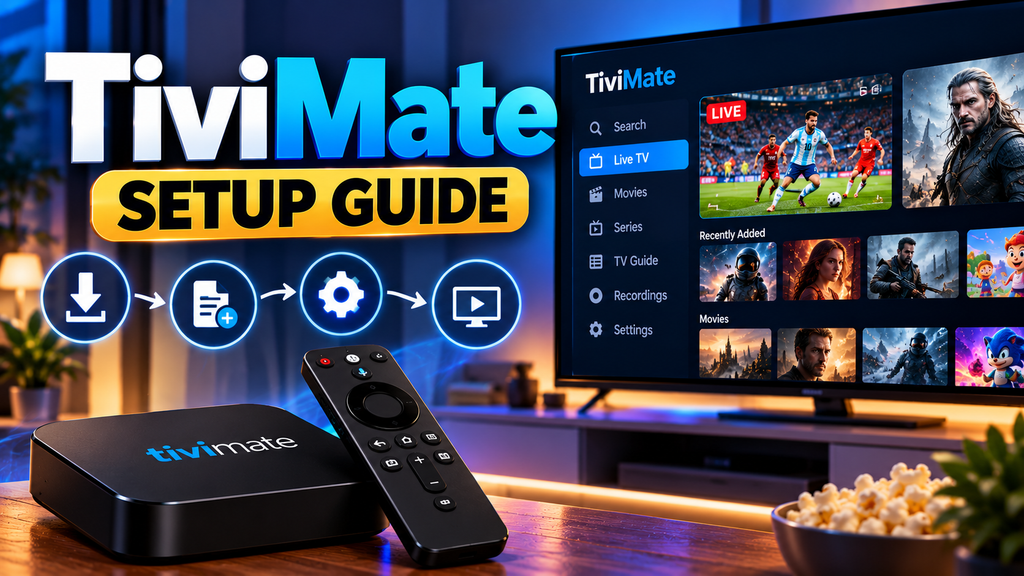
TiviMate is a popular IPTV player for watching live TV through a compatible Android TV device. It offers a clean interface, channel lists, an electronic programme guide (EPG) and playback controls that make browsing live channels easier.
However, getting started can be confusing if you are new to IPTV. You may need to install the app, enter your provider’s login details, load your channel guide and check your device settings.
This TiviMate setup guide explains each step in simple terms for UK users. It also covers common problems, including login errors, missing channels and an EPG that will not update.
What Is TiviMate IPTV Player?
TiviMate is an IPTV player that organises compatible live TV streams into a channel list. It does not provide TV channels, subscriptions or streaming content by itself. You need a compatible playlist or login from a service you are authorised to use.
The app is primarily designed for Android TV and compatible Android-based streaming devices. Features and availability may vary depending on your device, app version and subscription.
What Do You Need Before Installation?
Before starting, make sure you have:
- A compatible Android TV device or supported streaming device.
- A stable internet connection.
- The official TiviMate app, obtained from a trusted source.
- Valid IPTV login details or a playlist from your provider.
- EPG information, if your provider supplies it.
- An active premium subscription if you want to use paid TiviMate features.
Keep your provider’s login details private. Avoid unknown downloads and services that cannot explain their content rights.
Which devices can run TiviMate?
TiviMate is built for TV-style Android devices. It’s not designed for phones, and it doesn’t exist for Apple or most Smart TV platforms.
| Device | Can you use TiviMate? | How to install |
|---|---|---|
| Android TV / Google TV box | Yes | Google Play Store |
| Google TV Streamer | Yes | Google Play Store |
| Nvidia Shield TV | Yes | Google Play Store |
| Firestick with Fire OS | Yes, at the time of writing | Sideload with the Downloader app |
| Fire TV Stick 4K Select (Vega OS) | No | Vega OS only runs Amazon Appstore apps |
| Samsung (Tizen) or LG (webOS) TV | No | Use a different player or plug in a stick |
| Apple TV, iPhone, iPad | No | Use an iOS player instead |
| Android phone | Not supported | Use IPTV Smarters Pro or similar |
If your TV has Google TV built in (many Sony, TCL and Hisense models do), you can usually install TiviMate straight onto the TV.
TiviMate Setup Guide: How to Install TiviMate in the UK
The installation process depends on your device.
Step 1: Check Device Compatibility
First, confirm that your device supports TiviMate. The app is intended mainly for Android TV environments, so it may not work in the same way on every smart TV, phone or streaming stick.
If you use a Fire TV device, check the current app availability and installation requirements for your particular model.
Step 2: Find a Trusted Installation Source
Search for TiviMate through the official app distribution channel available on your device. Check the app name and developer details before installing anything.
If the app is unavailable, do not download a random APK from an unfamiliar website. Unverified installation files can expose your device to security risks.
Step 3: Install and Open the App
Follow the on-screen instructions to complete installation. Once the app opens, you should see options for adding a playlist or connecting to a compatible IPTV service.
The exact menu names may differ between app versions.
How to Log In to TiviMate
You normally need connection details from your IPTV provider before you can watch channels.
TiviMate may support different playlist and login methods, depending on the version and service configuration.
Option 1: Use Xtream Codes Login
If your provider supports Xtream Codes-compatible access, you may receive:
- A server address or portal URL.
- A username.
- A password.
Open the playlist or account setup section in TiviMate and select the appropriate login method. Enter the details exactly as supplied by your provider.
Check for missing characters, extra spaces or an incorrect server address before saving.
Option 2: Add an M3U Playlist
Some providers supply an M3U playlist URL instead of separate login fields.
Select the playlist option in TiviMate and enter the URL provided by your service. If your provider supplies a separate EPG URL, you may need to add that later.
Do not use playlist links from unknown sources. Only connect services you are authorised to access.
Step 3: Wait for the Playlist to Load
After entering your details, allow the app to process the playlist. Depending on its size and your internet connection, this may take a little time.
If the channels do not appear, check the login information and contact your provider to confirm that the account and playlist are active.
How to Set Up the EPG in TiviMate
The electronic programme guide displays programme information, such as show names, descriptions and scheduled broadcast times.
To set it up:
- Open the playlist settings in TiviMate.
- Find the EPG or programme guide section.
- Add the EPG source supplied by your provider, if it is not already configured.
- Update the guide and wait for the information to load.
- Check whether the programme listings appear beside your channels.
An EPG can be empty even when the channel stream works. This may happen if the source is missing, outdated or incompatible with the playlist.
Also check the device’s date, time and time zone if programme schedules appear incorrect.
How to Fix Common TiviMate Problems
TiviMate Login Not Working
Incorrect credentials are one possible cause of login problems.
Check your username, password and server address. Then confirm that your subscription is active and that your provider has not changed its connection details.
If the information is correct but the error continues, ask the provider to check the account and server status.
Channels Not Loading
If a channel list appears but streams will not play, check your internet connection first.
Restart the app and streaming device. Test another channel to see whether the problem affects one stream or the entire playlist.
If only particular channels fail, the issue may be with the source or provider rather than TiviMate itself.
EPG Not Updating
An outdated programme guide may result from an incorrect EPG URL, a source that is temporarily unavailable or an incomplete update.
Check the EPG settings, confirm that the source is valid and refresh the guide. If the problem remains, ask your provider for updated EPG details.
Buffering and Freezing
Buffering can result from a weak Wi-Fi signal, network congestion, device limitations or problems with the streaming source.
Try these steps:
- Move the device closer to your router.
- Use Ethernet where supported.
- Pause other downloads that are using significant bandwidth.
- Restart your router and streaming device.
- Test another channel to check whether the issue is source-specific.
A faster internet package does not always solve buffering if the provider’s server or the stream itself is the problem.
TiviMate Crashes or Runs Slowly
Start by restarting the app and checking for available updates. Make sure your device has enough free storage and that other applications are not using excessive resources.
Clearing the app cache may also help. However, avoid clearing app data unless you are prepared to configure your playlist and settings again.
TiviMate free vs TiviMate Premium
| Feature | Free | Premium |
|---|---|---|
| Live TV with TV guide | Yes | Yes |
| Multiple playlists | No | Yes |
| Catch-up | No | Yes |
| Recording | No | Yes |
Is TiviMate Premium Worth It?
TiviMate offers premium features through its paid option, but the benefits depend on how you use the app and which features are available in your version.
Before paying, review the current feature list, pricing and subscription terms from the official source. Confirm whether the features you need are included.
Remember that a TiviMate premium subscription is separate from an IPTV service subscription. Paying for the player does not automatically provide access to live TV channels.
Is TiviMate Legal in the UK?
Using an IPTV player is not the same as obtaining permission to watch every channel available through it.
Your legal position depends on the content source and whether the service has the necessary rights to distribute that content. Use legitimate services and avoid subscriptions that offer copyrighted premium channels without proper authorisation.
Be cautious of providers making unrealistic promises, hiding their business details or asking you to install suspicious software.
Does TiviMate provide live TV channels?
No. TiviMate is a media player. You need a compatible playlist or an authorised IPTV subscription to access content.
Can I use TiviMate on Firestick?
Compatibility depends on the Fire TV model, software and current app availability. Check the official installation options for your device before proceeding.
Why is my TiviMate EPG empty?
The EPG source may be missing, incorrect or outdated. Check the guide settings and ask your provider to verify the EPG information.
Do I need TiviMate Premium to watch IPTV?
The available features depend on the app version and subscription. Check the current official terms to see which features require payment.
Does TiviMate work without the internet?
You generally need an internet connection to load online playlists, stream live channels and update programme information.
Final Thoughts
Setting up TiviMate is usually straightforward once you have a compatible device and valid connection details. Install the app from a trusted source, add your authorised playlist, configure the EPG and test your channels.
If something goes wrong, check your login details, internet connection and playlist settings before assuming the app is broken. For account or server issues, your IPTV provider is the best place to start.
With the right configuration and a legitimate content source, TiviMate can make managing live TV streams easier on a compatible device.
TiviMate is the IPTV player people switch to once they get tired of app-style menus. It looks like a Sky or Virgin guide: a grid of channels down the side, programmes across the top, and a mini preview in the corner. This TiviMate setup guide covers where to get it, how to log in, and what to do when the guide or channels don’t load.
Quick answer: Install TiviMate from the Google Play Store on an Android TV or Google TV device, or sideload it on a Fire OS Firestick. Open it, choose Add playlist, pick Xtream Codes, and enter the server address, username and password from the best IPTV provider. TiviMate then loads your channels and the TV guide automatically.