Firestick Setup Guide for UK Streamers
Key Takeaways
- Your ZumTV IPTV subscription Firestick setup takes roughly ten minutes once Developer Options and Downloader are in place.
- Firestick blocks third-party apps by default, so you’ll sideload a player app rather than finding it in the Amazon App Store.
- IPTV Smarters Pro and TiviMate are the two most reliable players for pairing with a ZumTV login.
- You’ll need your ZumTV Xtream Codes details or M3U playlist URL, not your account email and password, to log in to the player app.
- A wired connection or 5GHz Wi-Fi makes a noticeable difference to buffering on Firestick, which has weaker Wi-Fi hardware than most smart TVs.
- Parental controls, EPG layout, and catch-up settings all live inside the player app itself, not inside ZumTV’s own interface.
- Free-to-air channels like BBC and ITV remain available through their own apps regardless of how your IPTV setup is configured.
Amazon’s Firestick is one of the cheapest ways into UK streaming, which is exactly why so many people search for a ZumTV IPTV subscription Firestick setup before they’ve even unboxed the remote. The stick itself is plug-and-play. Getting a third-party IPTV player onto it is the part that trips people up, mostly because Amazon doesn’t want you doing it and buries the settings that let you.
This guide walks through the whole process. Enabling sideloading, installing a player app, logging into your ZumTV subscription, and fixing the handful of things that go wrong on a first attempt. None of it requires technical background. It does require following the steps in order, because skipping the Developer Options step is the single most common reason people get stuck at “app not installed”.
Firestick Setup Guide for UK Streamers; What You’ll Need Before You Start
Get these sorted first, and the rest of the setup moves fast.
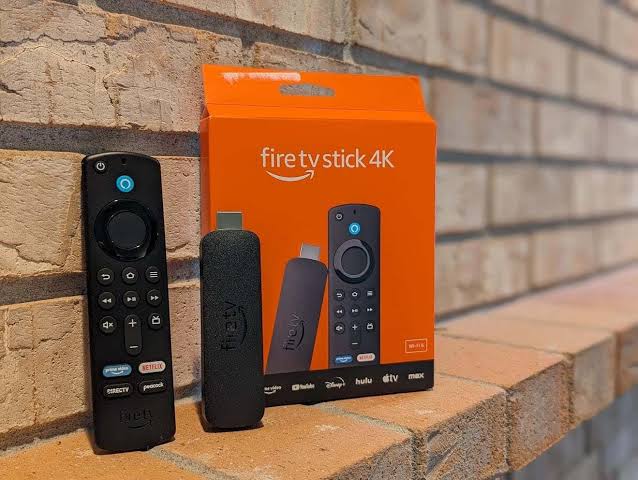
An Amazon Firestick, connected to your TV and powered on. Any generation from the 4K stick onwards handles IPTV fine, though older Firestick Lite models can feel sluggish once you’re running a player app on top of live streams.
A stable internet connection. ZumTV functions as a streaming access layer, so playback quality depends entirely on your home broadband, not on ZumTV’s own infrastructure. A wired Ethernet adapter for Firestick removes Wi-Fi as a variable altogether, and it’s worth the £10 if buffering has been an issue.
Your ZumTV login credentials. After signing up, ZumTV provides either an Xtream Codes login (server URL, username, password) or an M3U playlist URL. This is separate from the email and password you used to create your account, so keep it somewhere you can find it mid-setup.
A player app. ZumTV doesn’t have its own dedicated Firestick app in the Amazon App Store, which is standard across the IPTV access layer market. Instead, you’ll pair your subscription with a third-party player like IPTV Smarters Pro or TiviMate. Both are legitimate apps built for exactly this purpose.
Step 1: Enable Apps From Unknown Sources
Fire Stick ships locked down to Amazon Appstore installs only. To sideload anything else, you need to switch on a setting Amazon doesn’t put front and centre.
From the Firestick home screen, go to Settings, then My Fire TV, then Developer Options. If Developer Options isn’t listed, tap About instead, highlight your device name, and press the select button on your remote seven times in a row. A message will confirm developer mode is active, and the Developer Options menu will then appear where About used to sit alone.
Inside Developer Options, turn Apps from Unknown Sources to ON. This single toggle is what allows any app installed outside the Amazon App Store to actually run once downloaded. Skip it, and the install file will download fine but refuse to open.
Step 2: Install the Downloader App
Downloader is a free, Amazon-approved utility that lets you fetch APK files from the web directly onto your Firestick. It’s the bridge between “found the app online” and “app is installed on my device”.
Search for Downloader using the Fire Stick’s Find menu, select it from the results, and click Get to install. Open it once installation finishes and accept the permissions prompt. That’s the entire setup for Downloader itself.
Step 3: Download and Install Your IPTV Player App
With Downloader open, select the URL bar and type in the direct download link for your chosen player app.
For IPTV Smarters Pro, search the Downloader website listing or use the code provided on the app’s official download page, since these short codes change periodically and typing the wrong one lands you on an unrelated page. For TiviMate, the same principle applies: use the official download source rather than a random forum link, both to avoid outdated builds and to steer clear of anything bundled with unwanted software.
Press Go and let the file download fully. Once it finishes, the installer screen appears automatically. Select Install, wait for the confirmation, then select Delete when prompted to remove the leftover installer file. Firesticks run on limited internal storage, so this cleanup step matters more than it looks like it does, particularly if you’re also running Prime Video, Disney+, and a couple of games on the same device.
Step 4: Log Into Your ZumTV Subscription
Open your newly installed player app. On first launch, IPTV Smarters Pro and TiviMate both ask you to choose a layout. Select TV, since this optimises the interface for remote navigation rather than touchscreen taps.
You’ll then see a login screen with a choice between the Xtream Codes API and the M3U URL. Use whichever format your ZumTV subscription provides:
For Xtream Codes, enter the server URL, username, and password exactly as supplied. Typos here are the most common reason a “successful” setup shows zero channels.
For an M3U playlist, paste the playlist URL into the corresponding field.
Give the app a moment to pull down the channel list and programme guide. On a decent connection this takes under a minute; on the first sync it can occasionally stretch to two or three while the EPG data populates fully.
Step 5: Organise Channels and Set Up Catch-Up
Once channels load, both IPTV Smarters Pro and TiviMate let you build a favourites list so you’re not scrolling through hundreds of entries to find the five channels you actually watch. Long-press a channel and select Add to Favourites, then set the favourites bar as your default home tab in the app’s settings menu.
Catch-up TV, where available on individual channels, sits inside the same EPG grid. Selecting a programme that’s already aired typically brings up a ‘Watch’ or ‘Catch-up’ option if the channel supports it. This is a feature of the channel’s own catch-up window, not something ZumTV adds or controls, so availability varies by broadcaster rather than by your subscription tier.
It’s worth remembering that BBC and ITV content remains freely available through BBC iPlayer and ITVX regardless of your IPTV setup. ZumTV functions as a streaming access layer that brings channels into one interface; it doesn’t replace or restrict what’s already free-to-air.
Fixing the Most Common Firestick IPTV Problems
Channels load but freeze or buffer constantly. This is almost always a bandwidth or Wi-Fi issue rather than a ZumTV or player app fault. Run a speed test on the same network the Firestick uses. Anything under 15-20 Mbps for a single stream is going to struggle, especially if other devices are active on the same connection. Moving to a wired Ethernet adapter or repositioning your router closer to the TV solves this more often than any app setting does.
App installs but immediately closes. Usually a corrupted download. Delete the app entirely from Firestick’s Applications settings, restart the Fire Stick, and then repeat the Downloader steps from scratch rather than trying to reinstall over the broken version.
Login accepted but no channels appear. Double-check the Xtream Codes details character by character, since a single missing digit in the server URL is enough to fail to authenticate the login while returning an empty channel list. If the details are confirmed correct and channels still don’t populate, the playlist may need a manual refresh, usually available under the player app’s settings menu as “Refresh Playlist” or similar.
Firestick feels sluggish with the player app running. Older Firestick models, particularly the Lite version, have limited RAM. Closing background apps via the Firestick’s recent apps view before opening your player app frees up resources and noticeably improves responsiveness.
Setting Up Parental Controls
ZumTV itself doesn’t include a native parental control system. Instead, restriction settings live inside whichever player app you’ve chosen. In IPTV Smarters Pro, this sits under Settings > Parental Control, where you can set a PIN and restrict access to specific channel categories or the entire adult content section if your subscription includes one. TiviMate offers a comparable PIN-lock feature under its own settings menu.
If children use the same Firestick, setting this up during initial configuration, rather than after the fact, saves a conversation you’d rather not have later.
IPTV Smarters Pro vs TiviMate: Which Should You Choose
Both apps do the core job well, and either pairs cleanly with a ZumTV subscription. The difference comes down to interface preference and a couple of feature gaps.
IPTV Smarters Pro keeps things plain. Fewer menus, fewer decisions, a layout that gets out of your way. If you want to log in once and not think about settings again, that’s the pick. TiviMate goes the other direction. A more polished EPG grid, better multi-screen support, and a layout you can genuinely customise if you’re the type who likes tweaking channel groups and home screen order. TiviMate’s free tier does cap some features behind a premium subscription, so check what’s locked before you build your whole setup around it.
Neither app hosts content itself. Both simply display and play whatever your ZumTV subscription provides, so channel availability and quality depend on ZumTV, not on which player you pick.
Which Firestick Model Handles IPTV Best
Not every Firestick is built the same, and the difference shows up the moment you’re running a live stream and an EPG grid side by side.
The Fire TV Stick Lite is the budget entry point. It works for ZumTV, but the reduced RAM means switching between the player app and other apps takes a beat longer than it should. Fine for casual use, less fine if you’re flicking between channels during a match.
The Fire TV Stick 4K and 4K Max are the sweet spot for most households. More RAM, faster processors, and support for higher bitrate streams without the stuttering that shows up on older hardware. If you’re buying a stick specifically to run IPTV, this is the tier worth the extra cost.
The Fire TV Cube, Amazon’s higher-end box rather than a stick, adds even more processing headroom and a wired Ethernet port built in, which sidesteps the Wi-Fi weak spot entirely. Overkill for casual viewers, genuinely useful if your household streams across multiple rooms or devices at once.
Updating Your Player App and Playlist
Sideloaded apps don’t update themselves the way Amazon App Store apps do. IPTV Smarters Pro and TiviMate won’t ping you with an automatic update notification, so new versions need the same downloader process you used the first time round, just installed over the existing app rather than as a fresh install. Your saved ZumTV login and favourites carry over automatically when you update this way, since the update only replaces the core app files.
Your channel list and EPG data refresh on their own each time you open the app, provided your device has an active internet connection. If channels look outdated or missing after a known ZumTV update, a manual playlist refresh from the player app’s settings menu usually clears it without needing to log out and back in.
How Much Data IPTV Streaming Uses on Firestick
It’s worth knowing if your broadband has a data cap or if you’re streaming over a mobile hotspot while travelling. Standard definition IPTV streams typically use somewhere around 1-1.5 GB per hour. HD streams climb to roughly 3 GB per hour, and anything pushed to a 4K bitrate can exceed 7 GB per hour on longer viewing sessions.
For a household watching a couple of hours a day in HD, that adds up to somewhere in the region of 180-200 GB a month from IPTV alone, before accounting for other streaming services on the same connection. Most UK fibre packages handle this without issue, but it’s worth checking your plan if you’re still on an older capped broadband contract.
Is an IPTV setup like this legal on Stick?
Sideloading itself is legal and built into Fire OS by Amazon on purpose, so enabling Developer Options and installing IPTV Smarters Pro or Tivimate breaks no rules. The legality of the content you stream depends on the service supplying it, not on the fact that you sideloaded a player app to watch it.
ZumTV operates as a streaming access layer, bringing together channels through a subscription service rather than broadcasting or holding exclusive rights to any of the content itself. It’s a different model to Sky or a traditional broadcaster and worth understanding as you compare it against cable alternatives. Free-to-air services like BBC iPlayer and ITVX remain available on Firestick through their own dedicated apps regardless of your IPTV setup, and nothing in this guide involves bypassing broadband restrictions or accessing content outside of what your subscription legitimately provides.
Do I need a VPN to use ZumTV on a Fire Stick?
A VPN isn’t required for the setup itself. Some users choose one for general privacy on public or shared networks, which is a personal call unrelated to accessing your ZumTV subscription.
Why isn’t ZumTV in the Amazon App Store?
Amazon’s App Store policies restrict which IPTV player and access apps get listed directly. This is standard across the IPTV access layer industry, not specific to ZumTV, which is why sideloading a compatible player app is the normal setup path rather than an unusual workaround.
Can I use ZumTV on more than one Fire Stick at once?
This depends on the number of simultaneous connections included in your ZumTV plan. Check your account dashboard or your confirmation email for the exact device limit, since running more streams than permitted typically triggers a logged-out error on the additional device.
Will my ZumTV setup survive a Firestick software update?
Generally yes. Amazon’s Fire OS updates occasionally reset Developer Options, in which case you’ll need to re-enable Apps from Unknown Sources, but your player app and ZumTV login details stay intact.
What internet speed do I need for smooth streaming?
A minimum of 15-20 Mbps dedicated to the stream is a reasonable baseline for standard definition, with more headroom needed if you’re running HD content or multiple streams on the same connection simultaneously
Does ZumTV work on the Firestick Lite?
Yes, though the Lite’s reduced RAM can make navigation and app switching feel slower compared with the standard or 4K Max Firestick models.
One Response